Install the app
Gedeon is a Progressive Web App (PWA): you install it straight from your browser, without going through an app store. Once installed, it behaves like any other app on your device and is ready for field use, even without an internet connection.
Why install it?
Install the app on your device for in-field use, even without internet. Once installed, Gedeon opens full-screen, captures evidence and GPS faster, and keeps the Panic button always within reach.
The install prompt
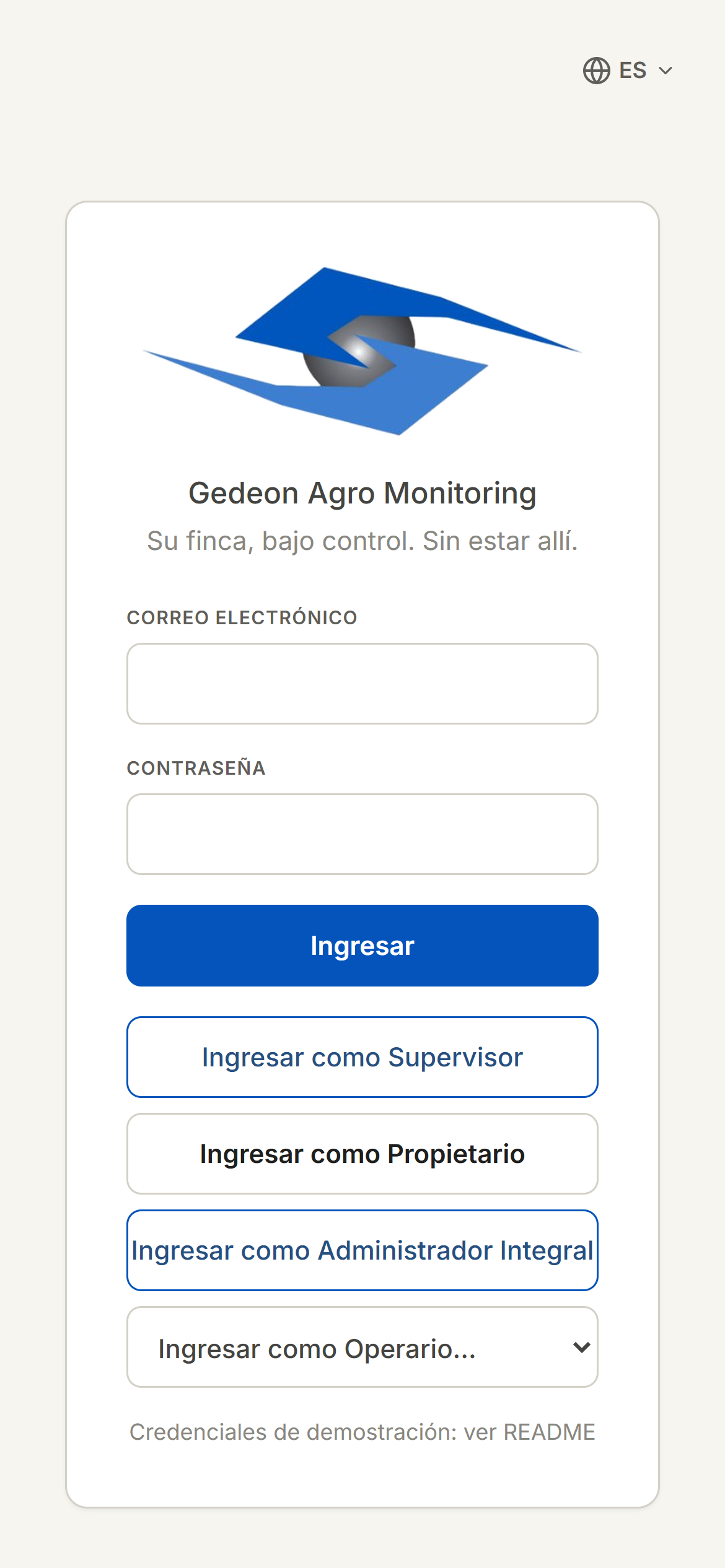
When you open Gedeon on a supported device, an Install Gedeon prompt appears. You can tap Install to do it right away, Show me how to see the steps, or Later if you prefer to wait. The prompt will reappear afterward.
Install on iPhone (Safari)
- Tap the Share button in Safari's bottom bar.
- Scroll and tap "Add to Home Screen".
- Confirm with "Add" in the top-right corner.
- Open Gedeon from the new icon on your home screen.
Install on Android (Chrome)
- Tap the ⋮ menu in Chrome's top-right corner.
- Choose "Install app" or "Add to Home screen".
- Confirm "Install" in the dialog.
- Open Gedeon from the newly-installed icon.
Install on desktop
- Click the install icon in your browser's address bar.
- Confirm "Install" in the browser's dialog.
- Open Gedeon from your application launcher.
Why it matters in the field
Installing Gedeon enables offline use (changes sync when the network is back), the Panic button with GPS, and geo-referenced photo capture wherever you are.
After installing, continue with Sign in.