title: Set up the farm description: Create your farm step by step with the wizard: basic information, map drawing, plots, initial inventory, and crews.
Set up the farm
SupervisorOwnerField operatorIntegral Administrator
Before any monitoring can happen, Gedeon needs to know your farm: where it is, how it splits into plots, and who works it. The setup wizard walks you through this once.
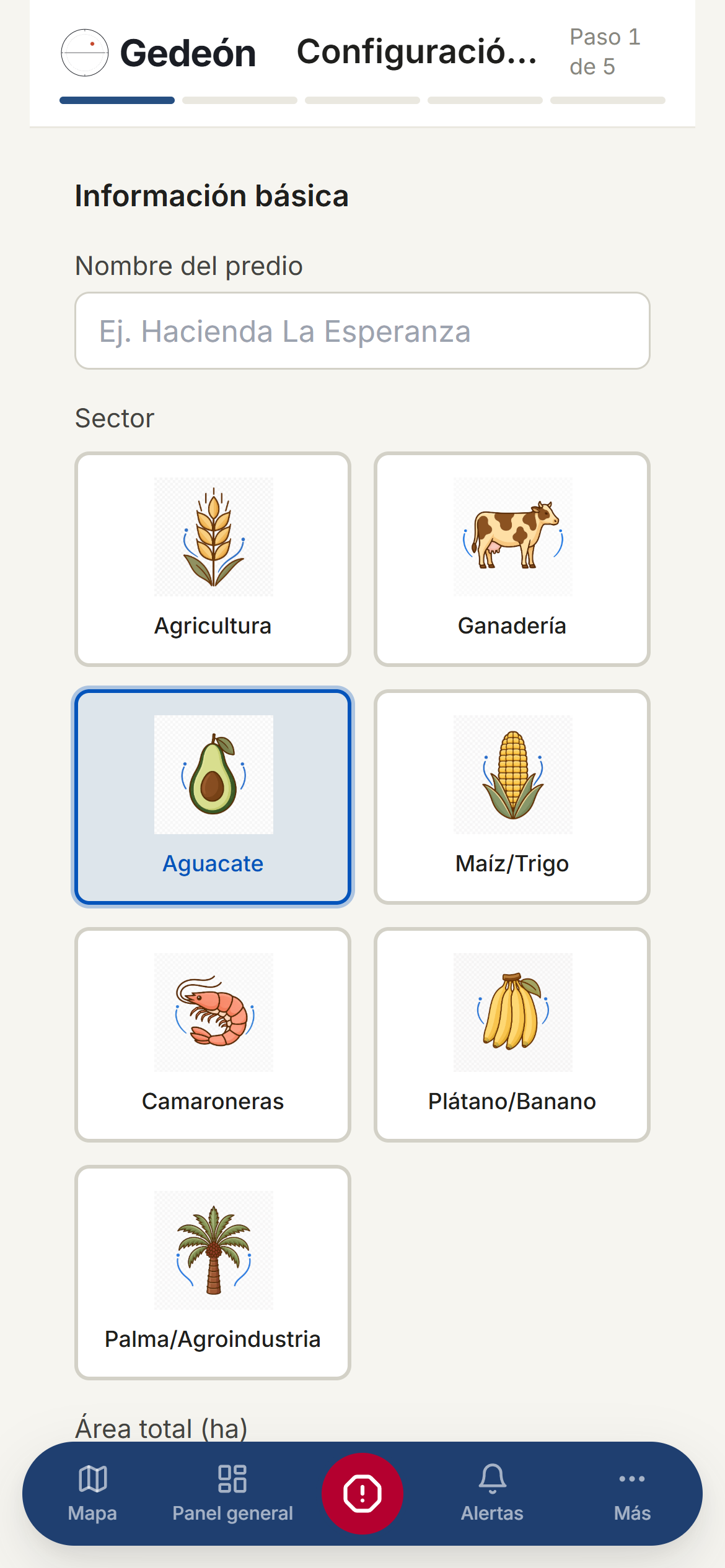
When the wizard appears
When you don't have a farm yet, the Dashboard shows the empty state Set up your first farm. Tap Start setup to open the wizard. You can also reach it from the Configure farm menu.
The wizard shows your progress as Step {{current}} of {{total}} and provides Back, Next, and finally Finish buttons.
Step 1 · Basic information
Fill in the farm's general details:
- Farm name — for example, La Esperanza estate.
- Sector — pick the main line of business: Agriculture, Avocado, Livestock, Shrimp, Corn/Wheat, Banana/Plantain, Palm/Agribusiness, or Agroexport.
- Total area (ha) — the approximate area in hectares.
Step 2 · Draw the farm
Define the land boundaries in one of two ways:
- Draw on map — Click on the map to add vertices. Double-click to close the polygon. Once closed you'll see Polygon drawn.
- Mark corners (GPS capture) — Walk to each corner of the plot and mark it. Minimum 3 corners. Use Mark corner at each vertex; Undo or Reset fix mistakes, and Finish closes the trace.
Heads up
You must draw the farm polygon to continue. If you see Low GPS accuracy on the last corner, re-mark it while standing on the corner with a good signal.
Step 3 · Subdivide into plots
Split the farm into plots. Each plot gets a Name and a Status.
- Manual — create each plot by hand.
- Auto-grid — set Rows and Columns, then tap Apply to generate the grid automatically.
Auto-grid replaces what exists
This replaces every plot already created. You must add at least one plot to finish.
Initial inventory (optional)
You can register your resources right away under Machinery & Equipment, Tools & Implements, and Consumables & Inputs. You can skip this step; you can add inventory later from Inventory.
Step 4 · Crews
Register your work teams with their Name and Members. You can add crews now or later with + Add crew.
Finish
When you tap Finish, Farm set up! appears with a summary of the plots and crews created. Tap Go to dashboard to start operating.