Sign in
The Sign in screen is your way into Gedeon. Enter the credentials your organization gave you and the app takes you to the view that matches your role.
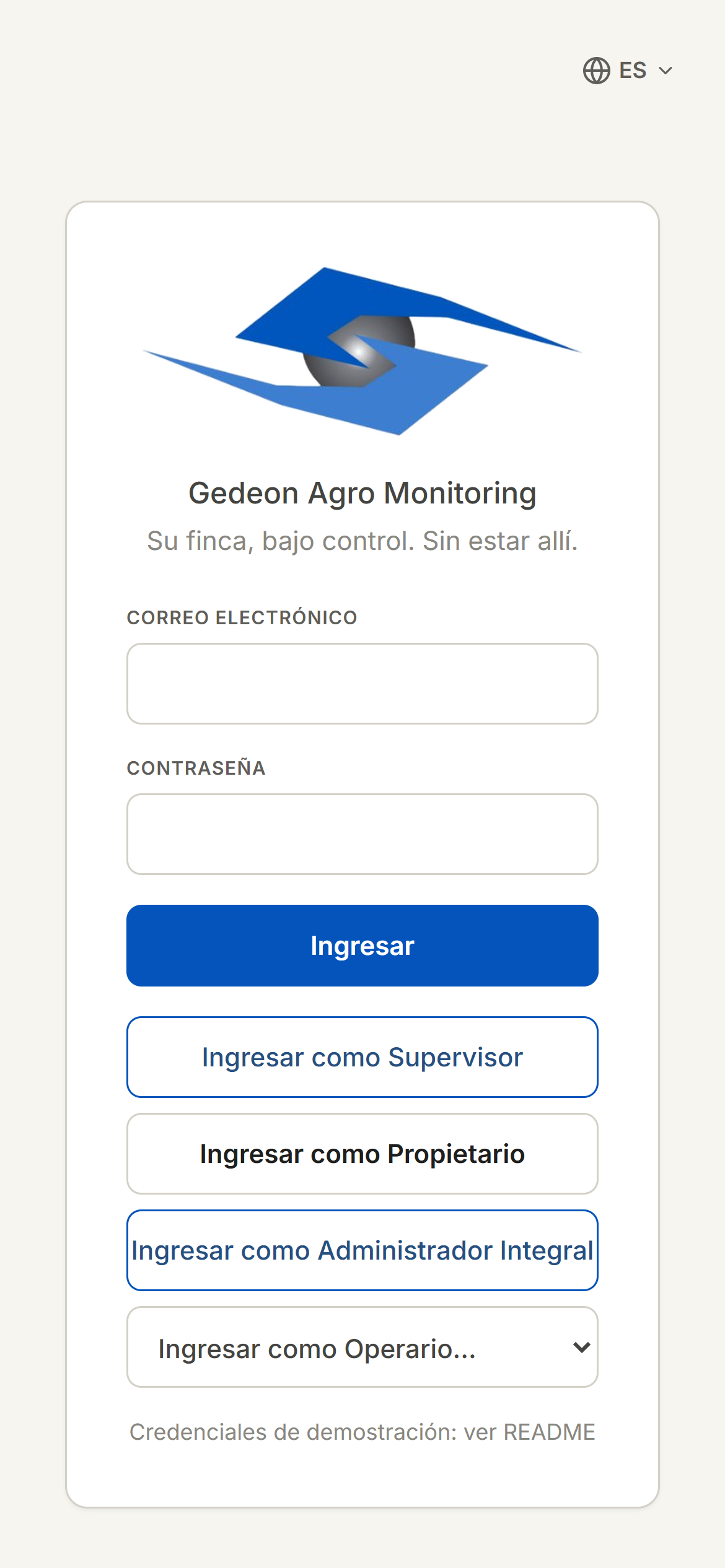
The sign-in screen
- Type your Email in the first field.
- Type your Password in the second field.
- Tap Sign in.
If the details are correct, you go straight to your main view. Your role determines which screens you see next; see Roles and permissions for more detail.
Your personalized greeting
When you sign in, Gedeon greets you according to the time of day: Good morning, Good afternoon, or Good evening. It's just a welcome; it doesn't change anything about your work.
Demo buttons (demo mode only)
Demo mode only
These buttons appear only when the app is in demo mode. On your real work account you won't see them: you'll just use Email, Password, and Sign in.
In demo mode, the screen adds one-tap shortcuts to try each role without typing credentials:
- Sign in as Supervisor
- Sign in as Owner
- Sign in as Integral Admin
- A Sign in as Field Operator… picker to choose one of the demo operators.
If you see "Authentication error"
The Authentication error message means the email or password don't match. To fix it:
- Check that the Email is spelled correctly, with no spaces at the start or end.
- Confirm the Password is correct (mind upper- and lowercase).
- Make sure you have an internet connection for the first sign-in.
Forgot your password?
If you can't remember your details, ask your supervisor or your organization's administrator to verify or reset them.
Once inside, learn what each profile can do in Roles and permissions.