Sync and offline mode
Gedeon is built for the field, where the signal comes and goes. When there's no internet, you don't lose your work: the actions you take are saved on your device and sent on their own when the network returns.
How it works offline
If you open the app with no signal, you'll see the notice Offline mode — changes will sync when the network is back. From that point:
- You can keep working: start and execute tasks, mark the checklist, register production or consumption, and report incidents.
- Each action you take offline is saved to a queue and shows Queued. You'll see Saved to queue — will sync when online.
- Data you'd already loaded stays visible with the Cached data label.
- A N queued badge tells you how many actions are waiting to be sent.
When the device gets its connection back, Gedeon tries to sync the queue automatically.
Photo evidence may need a connection
Most actions are saved offline, but some features that rely on uploading large files may require a connection. If an action isn't available offline, the app will tell you.
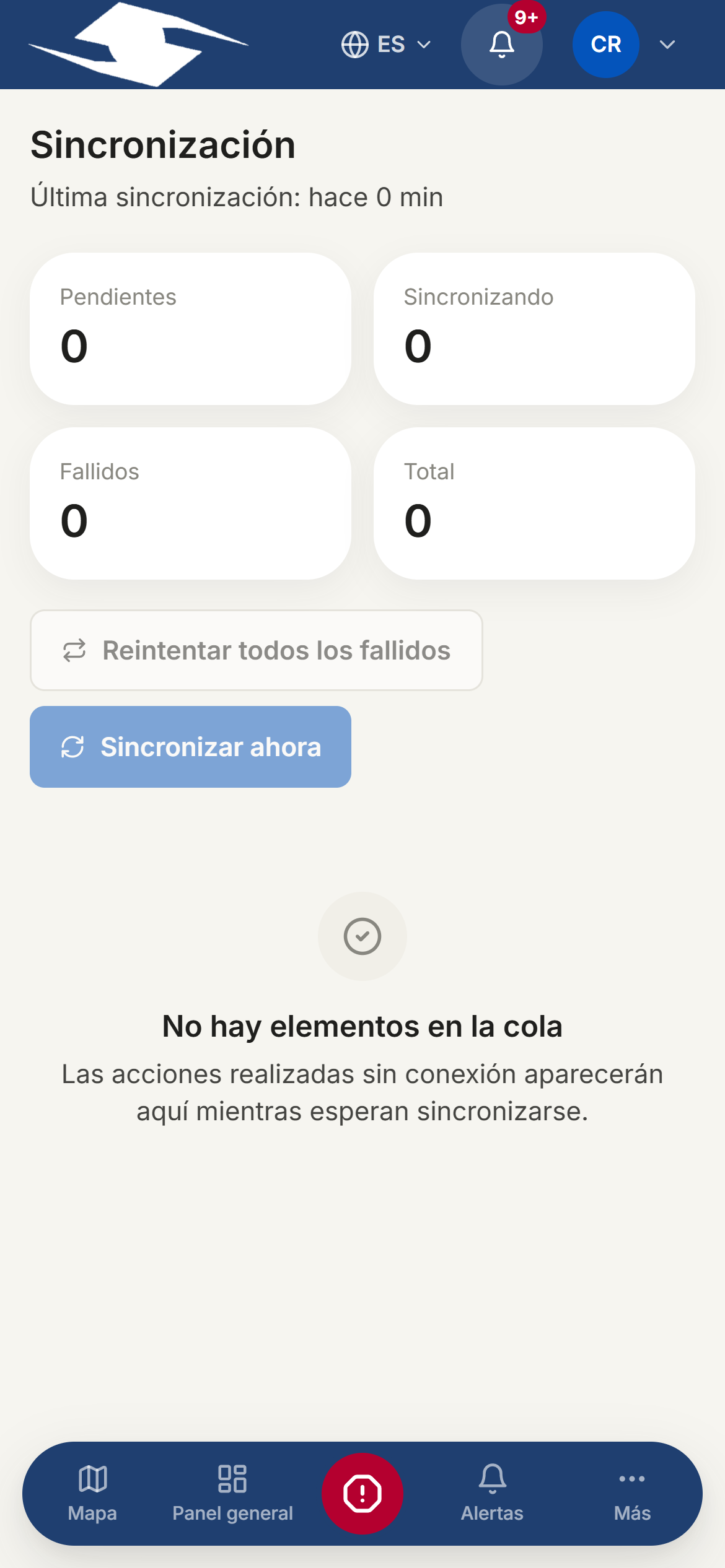
The Sync screen
Open Sync to view and manage everything that's queued. At the top you'll see four counts:
- Pending — waiting to be sent.
- Uploading — currently being sent.
- Failed — couldn't be sent (these need your attention).
- Total — all items in the queue.
Below that, Last sync shows the time of the last upload. If everything is up to date you'll see All caught up — no queued items.
Available actions
- Sync now — forces a send attempt for the whole queue.
- Retry all failed — retries only the ones that failed.
- On each item: Retry to send it again, or Discard to remove it without sending.
Each item also shows how many attempts it has had.
Discard can't be undone
If you tap Discard, that item won't be sent to the server and is lost. Only use it when you're sure that action is no longer needed.
What gets queued
In the queue you may find actions such as:
- Evidence (photos)
- Start activity and Mark executed
- Checklist item
- Production and Consumption
- Panic alert
- Incident report
- New activity
- Attend alert
- Security incident
Common sync errors
If an item shows as Failed, tap it to see why. The most common reasons:
- Evidence required — the task needs a photo before it can be executed.
- Checklist incomplete — items are still unmarked in the checklist.
- Not enough stock — you tried to register more consumption than is available in inventory.
- Permission denied — your role doesn't allow that action.
- Invalid data — a field in the record isn't valid.
- Server error — a temporary server problem; usually fixed by tapping Retry.
Fix what the message points to (for example, attach the photo or complete the checklist) and try again.
If storage fills up
If you save many offline actions over a long time, you'll see Storage almost full — sync soon. Connect to a network as soon as you can and tap Sync now to empty the queue and free up space.
Tip for low-signal areas
Work offline through the day without worry; when you reach a spot with signal, open Sync, check there are no Failed items, and let the queue drain.
Related
- My day — your tasks for the day, which you can execute offline
- Evidence — how photo evidence is captured and reported
- Panic button and incidents — what happens to a report made offline